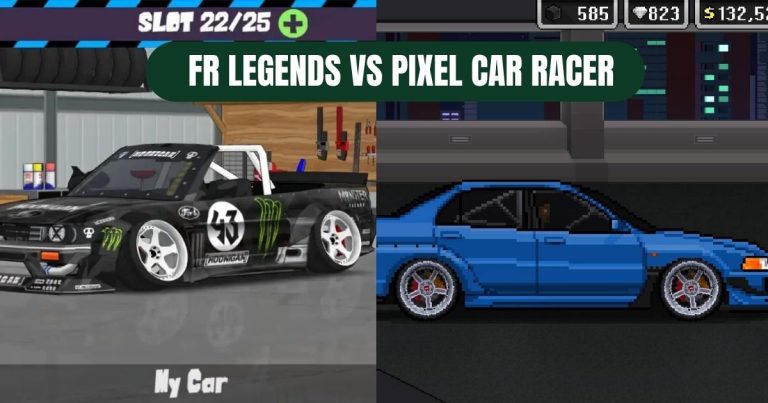
Struggling to get smooth gameplay in FR Legends on your mobile device? This guide details how to tweak in-game settings, device configurations, and other factors to boost frames per second (FPS) for a seamless drifting experience. By optimizing these elements, you can enjoy fluid visuals and responsive controls, enhancing your skills on tracks like Ebisu Minami.
Why FPS Matters in FR Legends
FR Legends is a drifting game that relies on precise inputs and realistic physics. Low FPS can cause lag, making it harder to time handbrake initiations or maintain drift angles. High FPS ensures smooth animations, especially during tandem battles or tight touge runs. Optimizing settings reduces stuttering, improving control over cars like the Audi A5 8T3. Aiming for 30–60 FPS, depending on your device, creates an immersive experience without sacrificing performance.
Checking Your Device’s Capabilities
Before adjusting settings, assess your Android or iOS device’s hardware to set realistic expectations.
- Processor and RAM: Mid-range chipsets (e.g., Snapdragon 600 series or equivalent) with 4GB RAM can handle FR Legends at medium settings. Older devices may struggle with high graphics.
- Storage Space: Ensure at least 1GB free to prevent slowdowns from background processes.
- Battery Health: A degraded battery may throttle performance. Charge to 80–100% or play while plugged in.
- OS Version: Update to the latest Android/iOS version for optimized game compatibility, as 2025 patches improved rendering.
Check your device specs via Settings > About Phone (Android) or Settings > General > About (iOS). If you’re using an emulator like BlueStacks, allocate at least 4GB RAM and 2 CPU cores for smooth play.
In-Game Settings for Maximum FPS
FR Legends offers adjustable graphics settings to balance visuals and performance. Access these in the game’s Settings menu under Graphics.
- Graphics Quality: Set to Low or Medium. Low reduces texture details, easing GPU load, while Medium balances visuals for mid-range devices.
- Resolution: Lower to 720p or below on older phones. High resolutions (1080p+) strain weaker hardware.
- Shadows: Disable to save processing power. Shadows add depth but aren’t critical for gameplay.
- Anti-Aliasing: Turn off to reduce edge smoothing, boosting FPS without noticeable quality loss during drifts.
- Frame Rate Cap: Set to 60 FPS if your device supports it. Lock to 30 FPS on low-end devices to avoid stuttering.
- Particle Effects: Disable smoke and tire marks. These effects, while immersive, heavily tax performance.
Test settings on a simple track like Drift Park to confirm stability. Adjust incrementally to find the sweet spot for your device.
Device-Level Optimizations
Beyond game settings, tweak your phone or tablet to prioritize FR Legends performance.
- Close Background Apps: Free up RAM by closing apps via the Recent Apps menu. This prevents multitasking slowdowns.
- Enable Performance Mode: On Android, go to Settings > Battery > Battery Saver and disable it, or enable Performance Mode if available (e.g., Samsung Game Booster).
- Clear Cache: Navigate to Settings > Apps > FR Legends > Storage > Clear Cache to remove temporary files that slow loading.
- Reduce Animations: On Android, go to Settings > Developer Options > Window Animation Scale and set to 0.5x or off. Enable Developer Options by tapping Build Number in About Phone seven times.
- Update Drivers: Ensure GPU drivers are current via system updates, as 2025 Android patches improved gaming performance.
For iOS, disable Background App Refresh (Settings > General) to free resources. Restart your device before long sessions to clear memory.
Using Game Booster Tools
Many Android devices include built-in game boosters, like Samsung’s Game Launcher or Xiaomi’s Game Turbo. These prioritize FR Legends by limiting background processes and optimizing CPU usage. Enable them via device settings or download third-party apps like Game Booster from the Play Store. For emulators, BlueStacks’ Performance Mode allocates more resources, ideal for high-FPS drifting.
Optimizing Mod APKs for FPS
If using a Fr Legends Mod Apk, performance can vary due to added features like custom tracks or liveries. Choose lightweight mods from trusted sources like this site. Scan APKs with antivirus apps (e.g., Malwarebytes) to ensure safety. Test mods offline on tracks like Gunsai Touge to check FPS stability. Avoid mods with excessive particle effects, as they can drop frames on mid-range devices.
Testing and Fine-Tuning
After applying changes, test performance in different modes:
- Solo Runs: Practice on Drift Park to measure FPS consistency.
- Battles: Tandem drifts stress hardware due to AI calculations. Monitor lag during close pursuits.
- Gymkhana: Tight courses test rendering speed. Adjust settings if cones stutter.
Use an FPS counter app (e.g., GameBench) to track real-time performance. Aim for steady 30–60 FPS, depending on your device. If lag persists, lower settings further or revert to the original game for stability.
Troubleshooting FPS Issues
Common problems and solutions include:
- Lag Spikes: Clear device storage or reduce in-game effects like smoke.
- Overheating: Play in a cool environment and limit sessions to 30 minutes.
- Crashes: Update the game or reinstall if using a mod. Ensure compatibility with 2025 patches.
- Low FPS on High Settings: Switch to Low graphics or upgrade your device for better hardware.
If issues continue, check community forums like Reddit’s r/FRlegends for device-specific tips.
Enhancing Gameplay with Liveries
Optimized settings let you focus on gameplay, like applying Fr Legends Livery Codes for custom designs. These don’t heavily impact FPS if kept simple. Import codes via the livery editor for lightweight visuals, avoiding complex decals that strain rendering. Community-shared codes on Discord enhance aesthetics without compromising performance.
Conclusion
Optimizing FR Legends for maximum FPS involves tweaking in-game graphics, device settings, and mod choices to suit your hardware. Lowering resolution, disabling effects, and managing background apps ensure smooth drifting on tracks like Hakone Turnpike TA Map Mod or the challenging Akina TA Map Mod. Testing and fine-tuning help balance visuals and performance. While mods add flair, they require careful selection to maintain stability. With these adjustments, you can master drifts with responsive controls and fluid gameplay, elevating your FR Legends experience.
FAQ
What’s the best graphics setting for low-end devices?
Set Graphics Quality to Low, disable shadows and particle effects, and cap FPS at 30. This reduces strain while maintaining playable visuals.
Do mods affect FPS in FR Legends?
Yes, heavy mods with extra tracks or effects can lower FPS. Choose lightweight mods from trusted sources and test offline.
How can I check my FPS in FR Legends?
Use an FPS counter app like GameBench or enable developer options to monitor performance. Test on simple tracks to gauge stability.